
DocBunker vs email
Email or a client portal for your documents?
Email attachments or a client folder? Compare one-off delivery, document collection and feedback during a client project.
The short answer
Which approach fits your project?
Email works for sending a single expected document to one recipient. A DocBunker folder becomes useful when you need to keep several files, versions and comments together throughout a project. You can keep using email to send the folder link and announce the next step.
This comparison covers ordinary attachments sent in an email conversation. Email services differ: some also offer sharing links and confidential modes. Choose according to what your client needs to do after receiving the document.
Everyday differences
On mobile, scroll the table horizontally.
| Your needs | Email attachments | DocBunker folder |
|---|---|---|
| One-off delivery | Attach a file to a message in a familiar email thread. | Prepare a folder, then send its link. |
| Project documents | Files remain spread across messages and recipients. | Keep shared files together in the project folder. |
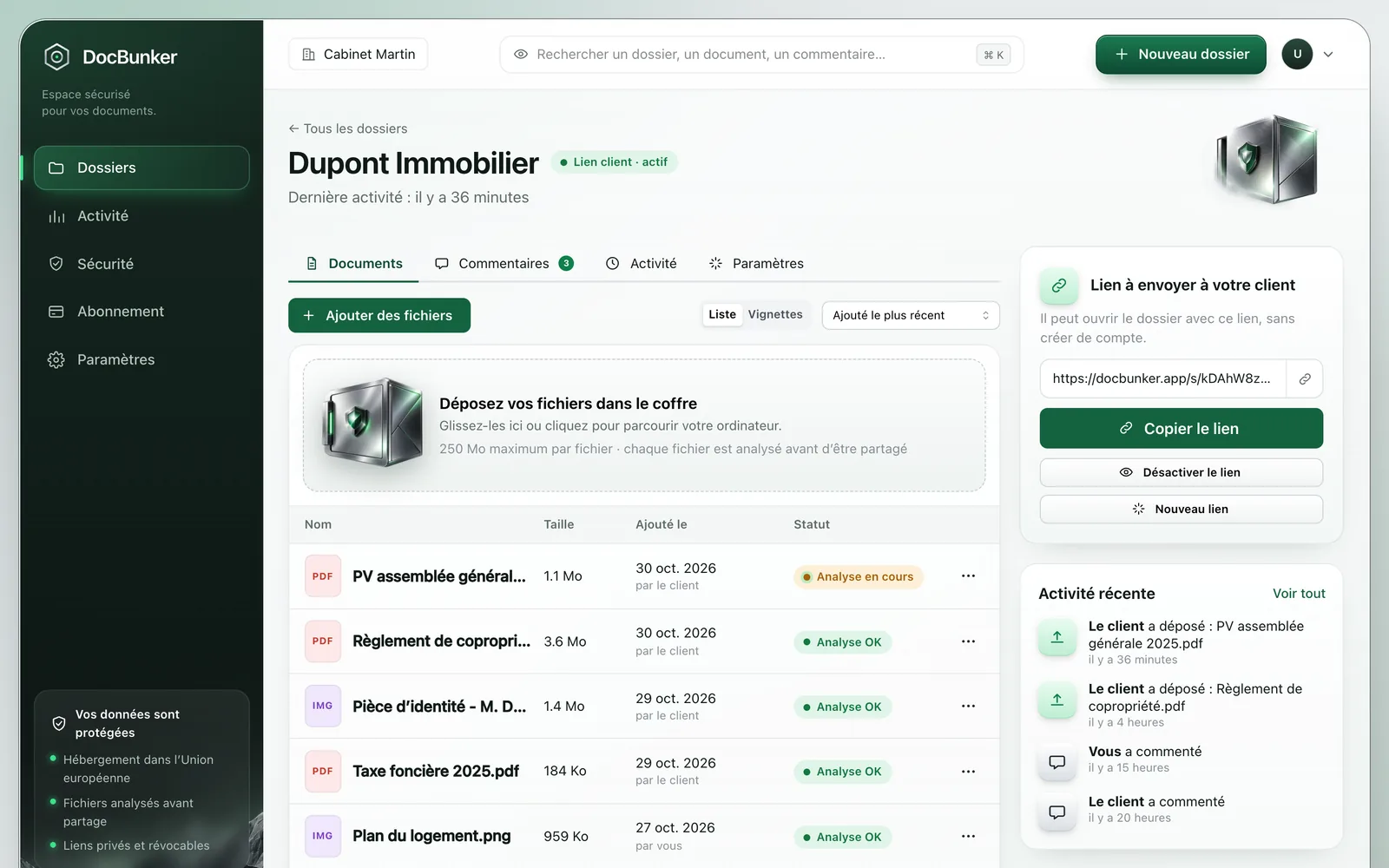
| Receiving client files | The client replies with attachments; you gather the responses. | The client uploads files to the same folder without an account. |
| Feedback and versions | Feedback follows email threads; you need to name versions. | Keep comments and files together; you still name the versions. |
| Ending access | The recipient keeps attachments already received or downloaded. | Revoke the link; downloaded copies remain with the client. |
A one-off exchange
When an attachment is enough
You are sending an invoice or a final document to one person, with no further collection or discussion around several files. A clear message, a well-named file and a checked recipient may be enough. A separate folder may add little to this single exchange.
An ongoing project
When to use a client folder
You expect files from the client, add proposals or need to find several comments before continuing work. A folder gives everyone a shared reference point. Keep naming versions and identifying the file to use: gathering documents does not establish approval.
Prepare a folderA practical example
Example: a quote changes during a project
A freelancer sends a quote, then receives a revision request and several reference documents. If each reply contains different files, they need to reconstruct the project from the conversation.
With DocBunker, they place the quote and references in the project folder. The client can leave feedback in the comments. A short email announces the next version and links to the folder without attaching everything again.
How to get started
- Prepare one folder per project and add the relevant documents.
- Email the link with a specific request: read, upload or comment.
- Name each new version and identify the one to use.
Anyone holding an active link can access the folder. Choose your recipients and close the link when sharing should end. Recipients keep copies they have already downloaded.
Common questions
Do I need to stop using email?
No. Use email to communicate and send the link, then use the folder to gather files and feedback. The two practices can work together.
Can I retrieve an attachment I already sent?
Deleting your message does not remove an ordinary attachment already received or downloaded. Recall and access controls depend on the email service. Revoking a DocBunker link stops future access through that link without retrieving downloaded copies.
Does a client portal support larger files?
It depends on the services and plans. DocBunker currently allows 25 MB per file on Free, 250 MB on Pro or 2 GB on Business, with 50 files per folder. Check the current plan limits against your documents before choosing.

Make client exchanges easier
One folder for the rest of your project.
Keep your preferred channel for messages, with a dedicated place for client documents and feedback.
Create my folder